Showing posts with label IWB. Show all posts

Using the ActivExpressions to extend thinking and make connections - spotlight Queen Victoria


Students in Martha McGloin's grade 8 Gifted ISP at Queen Victoria Public School are currently doing an inquiry project in Science. Their focus in around the topic of Characteristics of Living Things and connecting in the Cell theory. Preliminary questions some have chosen for their investigations so far include, "What is the significance of single-celled organisms? How does DNA determine how cells develop and work? to "How can certain cells be used for the injury recovery or accelerated evolution of the human species?"

As part of her students' learning, Ms. McGloin wanted to make sure students were connecting fundamentals of the characteristics of living things and cell theory with their inquiries. McGloin co-planned a lesson with itinerant teacher Valia Reinsalu to incorporate the Activ Expressions in order to foster student discussion and connections.


Martha McGloin, from Queen Victoria P.S. starts the day's lesson.


Using the Express Poll, students were asked a variety of text questions which asked them to provide examples of various aspects of the characteristics of living things. Once students responded, Ms. McGloin was able to paste their written responses onto the flipchart page.


Students were also given a number of questions to reflect on using the self-paced assessment set-up. With the self-paced assessment the question appears on the ActivExpression device itself. Each individual goes through the set of questions at his/her own pace.


(left) Text answers can be "word-seeded" or pasted onto the flipchart page for sorting. The sorted ideas from: Give an example of "Living Things grow in size, reproduce and are able to repair themselves."

During the lesson, some students moved and sorted responses into specific categories by either walking up to the Interactive Whiteboard (IWB) and using their hand to move text around. Others students used the ActivSlate to move their responses from their seats.

Ms. McGloin leads the discussion. 

Students connect the characteristic of living things to the example given by proposing the name of the big idea. 

Ms. McGloin's class were also asked questions to relate their inquiry project directly to the big ideas of characteristics of living things. Students felt engaged and a few said they preferred the method of text input over having to "write ideas down" on paper.

Response systems are an effective way to have each student provide a voice and input into learning - particularly in a class of 21 or more students. It's also a great way to have generated ideas and examples be collected, sorted and stored in a visual way. A flipchart is digital and can be printed out and/or saved and referred back to a number of times on the IWB.

Brown Bear comes to Thorncliffe Park P.S. - IWB co-teaching session DD ISP

Brown Bear Comes to Thorncliffe Park

The primary DD program at Thorncliffe Park P.S. received a Promethean Interactive Whiteboard (IWB) for their classroom through the Group SEA Claim process. Classrooms who received SEA IWBs were supported throughout the school year through Learning Communities and co-plan/co-teach job embedded learning opportunities. Donna MacKinnon, Primary DD Teacher of this program, co-planned and co-taught a lesson with Itinerant Resource Teacher, RenĂ©e Keberer, supporting this Learning Community.  


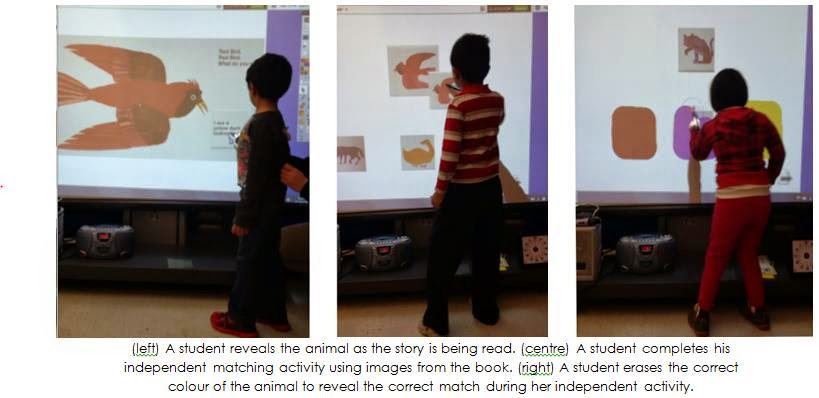
Donna’s students have been actively using their IWB, so a lesson was designed about reading and interacting with the book “Brown Bear, Brown Bear” on the Promethean Board. Using the ActiView document camera, screenshots of the book were taken so that the book could be displayed on the IWB. As the story is interactive in nature (sliding tabs and finding objects), this was recreated using various IWB tools. The students would take turns coming up to the IWB to reveal the various animals hidden on the page as the story was read. After the book was finished, independent follow up activities were created for each student to meet their individual needs and ability levels. Some activities were one-to-one matching, selecting the correct item to match, and matching the correct colour to the item. The students were able to navigate to their specific work page by touching either their name or photograph, which would directly link to their activity. While the students completed their independent task at the IWB, the other students were at different centres around the classroom completing various tasks. 

Teachers who observed the lesson were impressed with the engagement of the students and their proficiency with the Promethean Board.


Using Response Systems "clickers" to have students actively engage in Math lessons - Alvin Curling P.S. & Highcastle P.S.

The Interactive Whiteboard Learning Communities for the 2014-2015 school year have concluded.

At the LC final session teachers received Active Response Systems (Activ Expressions or Activ Votes) which are devices that allow students to share their voice and thinking using remote devices. Also referred to as clickers, the response systems provide support for students who may not want to raise their hand or speak in front of the class when sharing their understanding. The response systems also provide quick and useful feedback to both the student and teacher about student understanding as results are available immediately.

In recent in-class sessions Itinerant teacher Valia Reinsalu worked with two LC teachers in two very different ways in using the Active Response systems. At Alvin Curling P.S., Sahaira Khan used the expressions with her students using the Express Poll or adhoc questions. While in Gary Stewart's junior/intermediate Behaviour Intensive Support Program, his class used the responses to answer a self-paced assessment. (Click on the images to see a larger version of the photo.)

Alvin Curling Public School, Sahaira Khan, HSP Primary


Ms. Khan uses the Express Poll's wonder wheel to choose the type of question her Primary Home School Program students will answer. (left) Sahaira Khan has pasted the results of the answer onto the question page. One of her students answered different (see graph bottom right corner of photo). She is able to address and students discuss their responses immediately. (right)

Express poll text response: A student in Ms. Khan's class types out a text answer to a question.
Highcastle Public School, Gary Stewart, J/I Behaviour

Self-paced assessment. Mr. Stewart's students use the images on this page to help them respond to the set of questions given to them. They are given: text, multiple choice, true or false, sort in order and confidence questions.


Using the Active Expressions by using the self-paced assessment feature, a teacher can "pre-programme" a number of questions on the exact same page. Mr. Stewart built 12 questions on the same Polyhedra page. Student then receive the questions on their devices. Students can answer the questions at their own pace.
Self-paced assessment: The student in Mr. Stewart's class answers a question that appears on the ActivExpression device. She also has a copy of the assessment in paper to refer or do rough work on prior to sending her final response.

     
(left) The document view of a self-paced assessment. A number of questions are "pre-programmed" onto a flipchart page. The questions will appear on the student's device one at a time. (right) The document view. A teacher can print out the questions so student have a hard copy of the questions along with the questions appearing on the device.


Special Education teachers who received a SEA IWB attended four sessions at our training centres at Terraview Learning Centre (East) and Burnhamthorpe Adult Learning Centre (West) throughout the year. As part of the year-long support the six SEA itinerant teacher also provide job embedded professional learning sessions in the model of co-planning and co-teaching. The LC teachers look to try different ways to engage and teach their students by embedding assistive technology strategies and tools into their lessons.

Using Geometer's Sketchpad & its dynamic manipulatives as assistive technology - Clinton P.S. spotlight


Terry Lwin, who teaches a Junior Gifted class at Clinton P.S. wanted to challenge her students using Geometer's Sketchpad. And as part of the "I have Assistive Technology in My Classroom, How do I use it for Math?" Ms Lwin and itinerant teacher Valia Reinsalu explored and adapted a GSP Math activity that would allow for individual student creativeness within strict and prescribed guidelines of how artists draw a face.

The result was a Math and Art lesson which allowed for students to learn new functions and tools of GSP as well as be able to demonstrate their understanding of percentage on both the Promethean Interactive Whiteboard and individual computer.

Ms. Lwin, Junior Gifted ISP teacher, leads the class discussion to examine whether a students' drawing met the artist specifications listed. An example, "The distance from the hairline to the eyebrows is one-third the length of the face."


For the action part of the lesson, students use the various GSP tools - line segment, marker tool, point and compass tools to create a face design. A set of instructions listing how each part of a face relates to the entire face is given to them. They use the "sticky percent ruler" tool to judge the accurateness of their digital drawings to check if they met the design specifications to create their faces. Ms Lwin's students learn and explore percentage in a linear form for the first time. They also compared different kinds of percentage rulers and judged which tool was the most appropriate to use.


To extend her students' understanding of mathematical concepts and a simple transformational feature of Geometer's Sketchpad, Ms Lwin challenged her class to create half a face based on the same set of design specifications eg. "The distance from the chin to the bottom of the nose is  25% of the length of the face." Students then learned how to create and assign a mirror line in GSP and then reflect the one half of their face creation in order to make a symmetrical whole drawing.

This student's sketch highlights the dynamic nature of Geometer's Sketchpad. Once a mirror line is selected and an image is reflected, a student can move one half as far away or close to the line of reflection and the program maintains the relationship. The dynamic nature of GSP allows for students to explore many different kinds mathematical concepts without having to construct and reconstruct examples in a time consuming manner. 
Ms Lwin says her students enjoyed extending their knowledge of GSP. She particularly liked how easily students were able to create and explore their drawings in relation to percentage of a whole using the linear "sticky percentage ruler". Each students' drawing was unique yet still were able to compare the artist proportions if they met the set of mathematical requirements they were given.


AT to support communication and comprehension in Math 

Assistive technology team members Valia Reinsalu and Etienne Mercieca, who are itinerant teachers, present at the Ontario Association for Mathematics Educators (OAME) conference at Humber College on May 8 as part of the annual three-day Spring Conference.  Ms Reinsalu and Mr Mercieca will share strategies and tools for differentiated using the interactive whiteboard and its peripherals. They will also present ways that the Ministry Licensed software Geometer's Sketchpad (GSP) used in the above lesson, can be used to support all kinds of learners as assistive technology.


Building Mathematical Mindsets is the theme of this year's OAME conference. Some information about the conference can be found at: http://oame2015.ca/.


Photo Essay: Interactive Whiteboard in-class sessions: Job Embbed Professional Learning

Our Assitive Technology team supports 15 Learning Communities of teachers in our Interactive Whiteboard (IWB) group claim project. Each one of our six itinerant teachers facilitates specific LCs where teachers are grouped according to the exceptionality of students they teach geographic location of the school.

Throughout the year there are four sessions at Terraview Learning Centre (East) and Burnhamthorpe Adult Learning Centre (West), where itinerant teachers model ways to embed and differentiate learning using the assistive technology tools and strategies found using the IWB and its peripherals.
In between the session, there is job-embedded professional learning opportunities in school. The group gets together to observe a lesson that is co-planned by a host LC member and AT itinerant teacher. Opportunities to reflect, connect and discuss the different ways to using the AT to provide "the right tool at the right time for their specific students" is explored.

Here are some photos outlining some of the aspects of in-class LC sessions held earlier this month.(Click on the image to see a larger version.)

Teachers in the HSP Pri/Junior LC prebrief the lesson to be observed at Heritage Park P.S.

(left) Host teacher Anne Marie Butters, Timberbank Public School shares how she has created digital portfolios of her HSP students' work using Promethean flipcharts. (right) Host teacher Gary Stewart, Highcastle P.S. demonstrates how he uses desktop tools to capture images from the internet.

During the observation lesson, teachers note of the routines in place for students to access and use the AT. 
One of Mr Stewart's students accesses the board by using the slate to write down his idea that each graph "needs to have a title" during the Behaviour ISP LC in-class session.

(left) During Ms. Butters' lesson, a student slowly reveals parts of an image using the Magic Ink tool. (right) Mr. Stewart's students co-create an appropriate, detailed line graph together using Dual user feature. One student is making a voice note using the sound recorder. The other is plotting data.
Tool choice and the design of the lesson is made according to the specific needs of the students in the class.

(left) Host teacher Ms. Peterkin at Heritage Park P.S., shares the different ways students will show their learning. A few of her students work on the IWB, others using pencil and paper. (see below) (right) A finishes line graph by Mr. Stewart's students. One student typed his inference while the other used the sound recorder to verbally record his observation of the graph.
(left) A student uses digital manipulatives to graph her data. (right) A student uses the grid organizer, printed from the flipchart, to graph his data on paper.


Behaviour ISP in-class LC group after the lesson
at Highcastle P.S.

Following the descriptive writing lesson at Timberbank P.S.,
the group debrief ways students responded to the embedded AT.
This week our third set of Learning Community sessions have started. One of the goals of these sessions is to engage our learners using images and multimedia by using the document camera with the IWB. Stay tuned for blog entries sharing other in-class lessons and activities in our TDSB special education LC teacher classrooms!

IWB Learning Community – Job Embedded PD Spotlight: Nelson A. Boylen planning post-21 lesson


Using the IWB to Support Post-21 Planning for Students with Developmental Disabilities
For many teachers, one of the most impactful experiences of the IWB Learning Community journey is the opportunity to co-plan and co-teach with their Itinerant Resource Teacher. During these opportunities, HSP or ISP teachers are provided with a half-day of release time in order to meet with an Itinerant Resource Teacher to co-plan an authentic and relevant lesson using their classroom’s IWB. Collaboratively, special education classroom teachers and their Assistive Technology Itinerant Resource Teacher support differentiated learning by creating an interactive, multi-sensory lesson using the Promethean IWB.
Recently, Learning Community Member and teacher at Nelson A. Boylen, George Liolis hosted an IWB observation lesson. During his co-planning session with his Itinerant Resource Teacher, George chose to focus on his unit on ‘Employability Skills’ for his senior low-incidence class.

Through a variety of IWB activities; which included features such as containers, layering, and embedding video and sound students learned to identify the job titles, job duties and job tools associated with working at grocery store, as a custodial workers and at a restaurant. Through this lesson, students were supported as they sorted images of job duties associated with a specific job role and identified the job tools required to each tasks. Mr. Liolis’ students eagerly participated in the lesson and demonstrated sustained attention and excitement!


Throughout the lesson, students chose to access the board in a variety of ways. In this picture, one student uses the ActivWand to complete a container activity in which she sorts images of  job tools associated with a custodial worker. When she chooses a correct tool she hears a reward sound of cheering, if an incorrect image is chosen, it bounces out of the container. This activity provides immediate feedback and supports errorless instruction. This lesson truly met the needs of Mr. Liolis’ students and supported their skill development.


Our Learning Community members who attended this observation lesson, left feeling motivated and inspired to try new tools and features of the IWB to support student learning within their intermediate/senior low-incidence programs.

AT Tools to try in 2015 - ActiveInspire part 2

Tools to try in 2015: ActiveInspire
Tool: Hidden Action
Why: Using the hidden action allows teachers to draw student’s attention to a particular area on a flipchart page. Students tend to be more engaged when anticipating if text or an image is going to appear or disappear on a page.
Favourite Use: Chunking information for students when assigning their learning task so as not to overwhelm the learners

Tool: Linking Videos - YouTube
Why: Linking videos into ActivInspire can provide an excellent “hook” to begin lessons, provide concrete examples and increase student engagement through multi-modal learning
Favourite Use: I love linking brief YouTube videos into ActivInspire as a reinforcer and/or to motivate students with special needs to complete an assigned task. These videos can reflect a student’s special interest area and promote their engagement in order to achieve task completion

Tool: Grid Designer
Why: Using the grid designer allows students to easily visualize grids and graphs to support Mathematical concepts. The grid designer also allows teachers to organize content on the page.
Favourite Use: Visualizing math measurement concepts such as perimeter and area using virtual manipulatives allows students to explore and build their understanding easily, independently and cooperatively on the board. Bar and other graphs are more meaningful as students create and can make modification and corrections easily.

Spotlight Curricllum PD session: Using the IWB to Promote Body Awareness for Adolescents with Developmental Challenges

Curriculum PD Session

A new Curriculum PD session on Key To Learn entitled, "Using the IWB to Promote Body Awareness for Adolescents with Developmental Challenges" was presented to a group teachers at Burnhamthorpe Adult Learning Centre this week. This session focussed on strategies and suggestions for using the Promethean Interactive Whiteboard to create activities to promote body awareness and appropriate behaviours associated with puberty. Participants were given time to create lessons/activities to support their student’s specific and individual needs, along with the opportunity to collaborate with colleagues. 

Two teachers collaborate on the unique needs of the students in their classrooms while they develop the framework for the lesson/activity they will create.
An example of an IWB container activity that was shared with the participants at the session.

Interactive Whiteboard Learning Communities Have Started!


The year-long Learning Community sessions started on Monday, October 20th at both Terraview Learning Centre (East) and Burnhamthorpe Adult Learning Centre (West). Special Education Teachers who received a SEA Claim IWB (Promethean Board) are put into Learning Community Groups based on the exceptionality and grade level they teach. This year there are 15 Learning Communities supported by the Assistive Technology’s six Itinerant Resource Teachers.

As described in our Interactive Whiteboard Learning Communities "Getting Started" soon blog post, teachers in the first Learning Community session learn how to use the tools available in ActivInspire on the Promethean Board to engage students and support their learning needs.

Teachers who teach in Low Incidence classrooms created sign-in
pages for their students to reinforce concepts such as picture and
name recognition.

At the first Learning Community Session, Teachers were provided with two manuals to help them learn how to use the tools available in the Promethean ActivInspire software.  Teachers were also given an ActivWand to help students reach the Promethean Board and participate in activities and lessons.

For more information on different ways students can access the Promethean Board please see our previous blog post titled Ways to support accessing the Interactive Whiteboard .


An individual referral at Brookside P.S. - primary HSP spotlight


Co-Teaching at Brookside

Mrs. Kim, primary HSP teacher at Brookside P.S., initiated an AT Referral in order to have the opportunity co-plan and co-teach with Itinerant Resource Teacher Ren. Together, a Story Sequencing activity was planned using a book the students have read in class, Deep Snow by Robert Munsch, along with a Number Sense and Numeration activity to represent values. For the first activity, the students took turns first listening to each story picture and then ordered the events in the correct sequence. During the math activity, the student shared the task of representing numbers. Individual math pages were also created for each student to complete independently after the group task.

Auditory descriptions were attached to each picture so that students could hear and well
as see what was happening, in order to help support their sequencing task.
(left) Group Minds On Math activity. (right) Individualized Math “Action” activity using student interest to help motivate and support learning
Students in the class use virtual manipulatives to represent numbers.

The Importance of Assistive Technology


For students who struggle to access the curriculum, assistive technology helps to ‘level the playing field’ by providing additional tools and supports. Ultimately, assistive technology is meant to help students become more independent learners by allowing students to better control the pace they process information.


 For example, our Intermediate grade eight students using OneNote last year could choose to type notes, take pictures of information written on blackboards by teachers, or use the audio record feature to dictate notes to themselves. This allowed students to better focus on lessons their teachers delivered and also provided a resource for students to use when they required clarification (they could share their notes with their teacher in order to help show their teacher what aspects of the lesson they were continuing to have difficulty with).

Direct Line Did you know?
Every time Direct Line is published, TDSB staff no longer gets e-mail notifiers. Keep watching Direct Line to be part of one of the A.T. team's projects.
(We are currently accepting proposals for our latest phase of the OneNote project. TDSB staff, click here: OneNote to go to the Direct Line link.)


Our students using Read and Write Gold, are able type a piece of writing and then use editing tools such as the dictionary or picture dictionary, spelling, and audio playback to help them edit and revise their writing. Students could also use this software to have texts read to them at a pace that suits them and, if necessary, have a text re-read in order to help improve comprehension.


 Special Education classrooms equipped with an Interactive Whiteboard (IWB) provide teachers with a powerful tool to help differentiate their instruction. An IWB allows teachers to create multimedia lessons by embedding pictures, audio, and video. Students have opportunities to interact with IWB by manipulating elements on display. Activities can be saved for students to complete at a later time and pages can be individualized for each student in a class based on their individual interests and/or abilities, thereby increasing student engagement.


Of course, with so much technology available to support our Special Education students, it’s important teachers have ample PD opportunities to learn about what is available and how they can use it. As such, the SEA department continues to offer many sessions over the course of the school year aimed at both beginner and more advanced users to help develop skills and comfort when using these tools. Be sure to regularly check Key-to-Learn for what’s available and join us for one (or more) of our sessions!

A year in review with the SEA team

This blog post is dedicated to the hundreds of wonderful, dedicated special education teachers that members of the SEA team had the fortunate opportunity to work with this year.  Through your hard work and commitment to learning how to use assistive technology more effectively in order to support the learning needs of your students, we were able to support thousands of students across the TDSB this year.  Here is some of the feedback we received:

Which experiences were most beneficial to you in your Learning Community?
“To be honest, I found all of it helpful. It was great to see the different capabilities of the ActivInspire program, as well as all of the equipment that helped to go with it. I thought that the courses were developed perfectly, in that we didn't ever learn so much in a single day that it was overwhelming, but we learned enough for us to try new lessons in our class with the knowledge, until the next workshop. I also enjoyed being grouped with teachers who had similar student populations - just to see how they have found success in their classrooms” (Interactive Whiteboard Learning Community member survey response).

How has OneNote and the tablet helped you in school this year?
“I am started to use it to organize my subjects. I like to get information from the internet and have 2 pages open at the same time, so it’s easier to place information that I find” (Savannah, Gr. 8 student, West Hill PS).


Which experiences were most beneficial to you during the EQAO project this year? Please explain.

“Hands on training: it gave insight into how the program [Read and Write Gold] is laid out and how it functions - community learning: others provide questions and answers to situations that may arise - break down of sections: working on each section (math, language) allows to explore subject specific challenges and solutions” (EQAO and Read Write Gold Pilot teacher participant).


Please provide any additional comments related to this project you feel would be helpful.
[I Have Assistive Technology in my Classroom…How Do I Use it in Math?]
“It was a very valuable and lively discussion with my colleagues, and I also learned quite a lot when I went to observe a colleague's co-teaching. I discovered many new things relating to math and assistive technology!” (Learning Community member survey response).

The SEA team (2013-2014).
Our team is looking forward to a very exciting year next year with the continuation of many of our projects as well as a number of new projects! Don’t forget to check both DirectLine and Key-to-Learn on a regular basis for announcements about our initiatives. The SEA Team would also like to wish all of you a safe and enjoyable summer. We hope you rest, relax, and recharge. SEA you in September!


Supporting peer feedback using response systems: Spotlight on Heritage Park P.S.

In Mr. Watt's intermediate Learning Disability Intensive Support Program at Heritage Park P.S., students have used a number of strategies to provide peer feedback of presentations. Recently, during a co-teaching session with Itinerant teacher Valia Reinsalu, Mr. Watt and his students used the ActivExpression 2 learner response systems to provide comments and feedback to classmates' video game or game app presentations. The students reviewed a game by sharing power point oral presentations. 


James Watt models his own presentation for his students
 about the app "Plants vs. Zombies 2".
Mr. Watt presented to his class and students were able to provide feedback in a number of categories through the use of the ActivExpressions. The teacher and class co-created criteria about how to deliver an effective oral presentation and master the use of the interactive whiteboard to navigate a digital presentation. Feedback was provided via a pre-created list of questions known as a "self-paced assessment", where students can navigate and answer questions that appear on each ActivExpression screen at their own pace. 

Students can respond to different questions at their own pace on the ActiveExpression.
See photos (left) "was looking at the audience"  and (right) "talked loudly". 

Many different types of questions can be pre-programmed as self-paced tests. Mr. Watt used likeart (rating scale), yes/no and texting question types for his students' introduction to the use of the ActivExpressions. Questions appear on the device screen. (Further individualized support can be provided for students by generating a paper printout of the question set.)

Even though students answered each question at their own pace, the class feedback results can be examined and shared when the entire assessment is finished. 
For each question there were two parts. First, students were asked to pick a level of performance for a specific category eg. confidence level of the presenter. Then they had to provide a brief rationale for their choice of rating. (photo) confidence level of presenter.