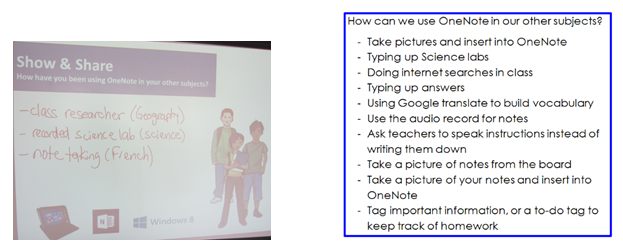
Here's an infographic created based on what students have been telling us about their work habits and tools that they use.
Showing posts with label AssistTech OneNote pilot. Show all posts
Spotlight Blantyre P.S. OneNote pilot project
In their first session, the Blantyre students became comfortable working with and navigating their new tablet devices. Since their first session, they reported using programmes such as Microsoft Word, Microsoft Powerpoint, and Read and Write Gold as part of their school work completion. Students also used internet websites available on the tablet such as Google Earth and linked to their homeroom classroom teacher's web-based sites such as bitstripsforschools or Edmodo to contribute to class work.
used tools such as Screen Clipping and tags.
- If you get a paper you have a backup..
- Take a picture of your textbook so not to have it so heavy in your backpack.
- Help me put my homework or notes into OneNote…
- Art – can edit my art digitally..make it virtual
- History – take a picture of notes
- (chart paper) charts for Math
![]() |
| A Blantyre student captures a handout about Brain functions using HP Pagelift. (left) Capturing the page. (right) Editing and cropping the digital image. |
![]() |
| The group of Blantyre students brainstormed five ways that the OneNote can help them to organize their school work. |
Spotlight: OneNote at G.A. Brown M.S. - one of many TDSB classrooms participating in the intermediate AT project
![]() |
| A G.A. Brown student models how to create a new OneNote notebook in her H: drive using the Interactive Whiteboard. |
In the first session, students receive their tablet devices and become proficient in navigating the Windows 8.1 environment of both apps and desktop applications. In the second session students create their OneNote binders - the basis on which they create their personal digital binder.
![]() |
| Creating a sub-page during research of My Favourites project. |
![]() |
| Ms. Le and students collaborate and learn together during session 2 of the OneNote project. |
|
|
OneNote pilot project phase two continues in 2015. Phase 2 also gets underway in the new year.
Labels:
AssistTech OneNote pilot,
G.A.BrownM.S.,
hp Page Lift,
HSP,
Organization,
tools,
transitions
OneNote intermediate project now underway
We are extremely excited to announce that our OneNote project is now underway! Twenty-five teachers attended professional development sessions at either our Burnamthorpe or Terraview learning centres. Teachers learned about OneNote’s many features available to support our Intermediate students in Special Education classes with organizational and other executive function needs.
The day's group of intermediate special education teachers had the opportunity to explore the OneNote software and create notebooks and pages of their own. They also learned how to use tools such as templates, tables, and tagging and engaged in meaningful professional dialogue on how these tools could benefit the students they are supporting.
![]() |
| Using templates (left) and tagging information (right) just two ways the OneNote software supports student organization. |
Teachers learned how the use of assistive technology tools will better enable their students to be successful not only in their Special Education classrooms, but also in their rotary subject classrooms as well and that this will help to better prepare them for their eventual transition to secondary.
![]() |
Teachers share all the things they have learned about the OneNote software. |
![]() |
Teachers had the opportunity to practice doing research as their students might, using assistive technology tools. |
The Importance of Assistive Technology
For students who struggle to access the curriculum, assistive technology helps to ‘level the playing field’ by providing additional tools and supports. Ultimately, assistive technology is meant to help students become more independent learners by allowing students to better control the pace they process information.
For example, our Intermediate grade eight students using OneNote last year could choose to type notes, take pictures of information written on blackboards by teachers, or use the audio record feature to dictate notes to themselves. This allowed students to better focus on lessons their teachers delivered and also provided a resource for students to use when they required clarification (they could share their notes with their teacher in order to help show their teacher what aspects of the lesson they were continuing to have difficulty with).
Direct Line Did you know?
Every time Direct Line is published, TDSB staff no longer gets e-mail notifiers. Keep watching Direct Line to be part of one of the A.T. team's projects.
(We are currently accepting proposals for our latest phase of the OneNote project. TDSB staff, click here: OneNote to go to the Direct Line link.)
Our students using Read and Write Gold, are able type a piece of writing and then use editing tools such as the dictionary or picture dictionary, spelling, and audio playback to help them edit and revise their writing. Students could also use this software to have texts read to them at a pace that suits them and, if necessary, have a text re-read in order to help improve comprehension.
Special Education classrooms equipped with an Interactive Whiteboard (IWB) provide teachers with a powerful tool to help differentiate their instruction. An IWB allows teachers to create multimedia lessons by embedding pictures, audio, and video. Students have opportunities to interact with IWB by manipulating elements on display. Activities can be saved for students to complete at a later time and pages can be individualized for each student in a class based on their individual interests and/or abilities, thereby increasing student engagement.
Of course, with so much technology available to support our Special Education students, it’s important teachers have ample PD opportunities to learn about what is available and how they can use it. As such, the SEA department continues to offer many sessions over the course of the school year aimed at both beginner and more advanced users to help develop skills and comfort when using these tools. Be sure to regularly check Key-to-Learn for what’s available and join us for one (or more) of our sessions!
For example, our Intermediate grade eight students using OneNote last year could choose to type notes, take pictures of information written on blackboards by teachers, or use the audio record feature to dictate notes to themselves. This allowed students to better focus on lessons their teachers delivered and also provided a resource for students to use when they required clarification (they could share their notes with their teacher in order to help show their teacher what aspects of the lesson they were continuing to have difficulty with).
Direct Line Did you know?
Every time Direct Line is published, TDSB staff no longer gets e-mail notifiers. Keep watching Direct Line to be part of one of the A.T. team's projects.
(We are currently accepting proposals for our latest phase of the OneNote project. TDSB staff, click here: OneNote to go to the Direct Line link.)
Our students using Read and Write Gold, are able type a piece of writing and then use editing tools such as the dictionary or picture dictionary, spelling, and audio playback to help them edit and revise their writing. Students could also use this software to have texts read to them at a pace that suits them and, if necessary, have a text re-read in order to help improve comprehension.
Special Education classrooms equipped with an Interactive Whiteboard (IWB) provide teachers with a powerful tool to help differentiate their instruction. An IWB allows teachers to create multimedia lessons by embedding pictures, audio, and video. Students have opportunities to interact with IWB by manipulating elements on display. Activities can be saved for students to complete at a later time and pages can be individualized for each student in a class based on their individual interests and/or abilities, thereby increasing student engagement.
Of course, with so much technology available to support our Special Education students, it’s important teachers have ample PD opportunities to learn about what is available and how they can use it. As such, the SEA department continues to offer many sessions over the course of the school year aimed at both beginner and more advanced users to help develop skills and comfort when using these tools. Be sure to regularly check Key-to-Learn for what’s available and join us for one (or more) of our sessions!
OneNote spotlight: Brookside P.S. intermediate HSP
OneNote at Brookside Public School
Brookside Public School is one the latest schools to begin the OneNote Pilot Project. Under the support of their classroom teacher, Judith Churchill, and Itinerant Resource Teacher, Renée Keberer, the students have been exploring the power of Microsoft OneNote and the many features of the HP tablet.
![]() |
Two students have just received their tablets. |
![]() |
One student is inserting a table into his OneNote Binder. |
![]() |
Students shared what they liked most about their tablet and the best thing they have learned. |
![]() |
Students used OneNote (Table and Snipping Tool) to create their “Top 5 OneNote Tools”. |
The staff and students at Brookside P.S. shared some of their thoughts about OneNote:
“OneNote has enabled my students to demonstrate their full potential in the classroom. I have watched their productivity and confidence soar.” ~Mrs. Churchill
“Screen Clipping is easy because it is like copy and paste but quicker – just draw a rectangle and it automatically puts it into OneNote.” ~ Veronica
“I like OneNote because it is easy to organize your stuff.” ~ Victoria
“OneNote is good to research, find images and insert video links.” ~ Venujan
OneNote supporting student organization: Secondary spotlight at Weston Collegiate Institute
OneNote at Weston CI
The Junior ASD class (grade 9 and 10) at Weston Collegiate is one of the many classes participating in the OneNote Pilot Project in the TDSB. The students reflected on how OneNote helps keep them organized and how the various features of OneNote can be used to support their organization and learning; throughout all of their rotary classes. They have quickly discovered many new ways OneNote can be used to support organization and overall school success.
![]() |
The students generated a list of ways OneNote helps to keep themselves organized. |
![]() |
Rotary classes? The students discuss some of the OneNote features that supports their organization throughout the day. |
Personal organization and independence: OneNote pilot project in Secondary summary
What are tools that secondary students prefer?
The Assistive Technology team’s OneNote Pilot Project focuses upon personal organization and independence in order to support the “Big T” transition from grade 8 to high school. This initiative aims to provide explicit training of OneNote software, with a distinct focus on the ways in which the tools/features of OneNote can be used in classroom settings to support student learning - from the intermediate grades, into high school and beyond.
During our final in-class training session, students are encouraged to create a personal list of the “Top 5 OneNote Tools” that will enable them to be their most independent and successful in their integrated classes.
Here is a list of the tools/features our students love the most:
Student can use their finger or a stylus to write, draw or highlight their notes directly in OneNote.
With OneNote, our students love that they never have to save their work and fear losing their content. Everything is automatically saved – alleviating student stress and anxiety.
Do your thoughts ever flow faster than you can write, or even type? For the students we support, the Record Audio tool enables students to record their thinking, instructions from their teacher and even reminders of what to study for an upcoming quiz!
Screen Clipping allows students to quickly and easily capture images/content from the internet and place it directly into OneNote. This tool supports researching and accessing content. The best part is that it also includes bibliographic information to source the website the specific information clipped from!
Our #1 voted tool that serves as the biggest “game-changer” for our students is the HP Page Lift App. This tool allows students to make handouts, textbook pages, and even the chalkboard digital by taking a picture of hardcopy resources and sending them directly to OneNote. These images can be placed in the appropriate section of a student’s notebook and can be annotated on. Students love never having to worry about losing a worksheet again!
By mastering the use of these OneNote tools and features, the students who have participated in this pilot have reported increased academic success, self-confidence and happiness. With these skills – our students will be transitioning to high school with the necessary skills and tools to be their most successful in high school.
OneNote pilot project summary Tecumseh P.S.
OneNote comes to an end at Tecumseh, but the learning continues…
![]() |
Students sign in by indicating the best thing they have learned in the OneNote Pilot. |
![]() |
Keon and Stacey discuss their favourite OneNote feature.
![]() |
| D’Angelo takes us through a tour of his OneNote binder. |
![]() |
Tecumseh’s top 8 list of things they learned through the OneNote Pilot. |
Subscribe to:
Posts (Atom)